How to become a Blooket Host
Blooket is a fun and interactive educational platform that allows teachers and students to engage in learning through games. If you want to become a Blooket host or host a game on Blooket, this complete guide will explain everything you need to know. We have covered how to host Blooket, manage your games, and answer the most common questions related to hosting on Blooket.
What is a Blooket Host?
A Blooket Host is an individual, typically a teacher, who creates and manages games on the Blooket platform. As a host, you have the ability to design custom quizzes, select game modes, and guide students through interactive learning sessions. When you host a game, you provide a unique game code for students to join in real-time, allowing them to play, learn, and compete in a fun and engaging way. The host can track students’ progress, view performance analytics, and even assign homework through the platform. Essentially, the Blooket Host acts as the organizer and facilitator, ensuring that the game runs smoothly while enhancing the learning experience for students.
When you become a Blooket Host, you are responsible for several key tasks to ensure a smooth and engaging learning experience for your students. These tasks include:
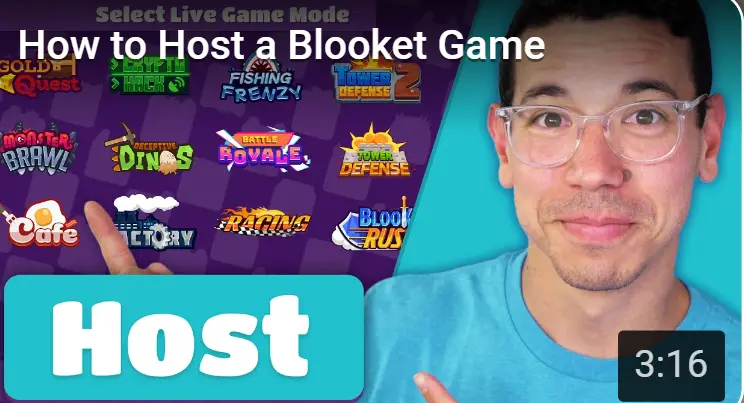
- Creating Games: You’ll design custom quizzes or choose from pre-existing question sets. You can select different game modes (like Tower Defense, Match, or Classic) to keep the sessions exciting and varied.
- Managing Game Settings: As a host, you decide the rules for each game, such as the time limit for answering questions, the type of questions (multiple-choice, true/false, etc.), and how players earn points or rewards.
- Providing a Game Code: After setting up the game, you generate a unique code that students will use to join the game. This code allows you to control who participates in your session.
- Monitoring Student Progress: During the game, you can track real-time performance. You’ll be able to see how each student is doing, which questions they are struggling with, and who’s leading in points.
- Facilitating Interaction: You guide students through the game, answering any questions they might have, and ensuring that everyone is participating fairly.
- Assigning Homework: You can use Blooket to assign game-based homework or review sessions that students can complete at their own pace, outside of class hours.
- Reviewing Results: After the game ends, you can analyze the results and performance of each student. This data helps you identify areas where students need improvement and adjust your teaching strategies accordingly.
- Ensuring a Positive Environment: As a host, you are responsible for creating a fun, inclusive, and supportive learning environment where students can enjoy learning while staying motivated.
How to Host a Blooket Game
Hosting a game on Blooket is quick and simple. Once you log into your Blooket account at Bloketjoin.com, you can easily set up a new game. The platform generates a unique game code for participants to join in. As a Blooket Host, you’ll manage the game through a user-friendly dashboard, allowing you to track players’ progress in real-time. This interactive experience makes learning more dynamic and enjoyable. Engaging with participants while they play ensures a fun and effective learning environment.
Hosting a game on Blooket is straightforward and an excellent way to make learning interactive and enjoyable. Whether you’re a teacher aiming to engage your class or a student wanting to add some fun to your study sessions, Blooket makes the process easy and accessible for everyone.
How to host a blooket game as a teacher
Hosting a Blooket game as a teacher is a fun and interactive way to engage your students in learning. With its easy-to-use interface, you can create customized quizzes and turn them into games that help students review lessons while having fun. Here’s a simple guide on how to host a Blooket game:
1 Create a Blooket Account
If you don’t already have a Blooket account, head over to Blooket.com and sign up. You can create an account using your email or sign up through Google. Once you’re logged in, you’ll be ready to create and host games.
2 Choose a Game Mode
After logging in, go to the Blooket Dashboard. Here, you can choose from various game modes like Tower Defense, Match, Gold Quest, and others. Each game mode has different ways to interact with the quiz, so choose one that best fits your lesson’s objectives. If you want a more competitive environment, Match may work well. For collaborative learning, try Tower Defense.
3 Create a Game
To create your game, click on the “Create” button on the Blooket Dashboard. From there, you can either create a new question set or import one from the vast Blooket library. You can customize the questions and answers to fit the content you’re teaching.
Make sure the quiz questions are accurate and clear, as this is what students will be using during the game. You can also select the type of questions, such as multiple choice or true/false.
4 Host the Game
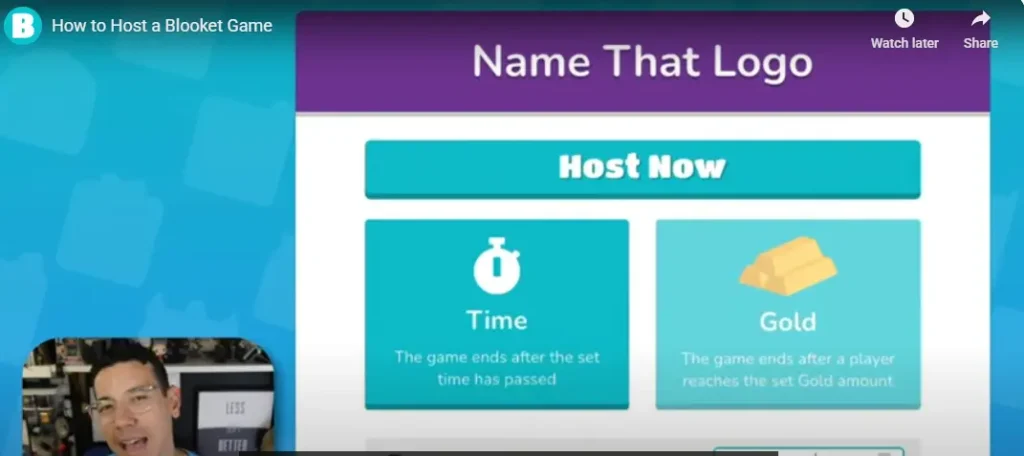
Once you’ve created your quiz, click the “Host” button to start the game. Blooket will generate a unique game code that students will use to join the game. You can share this code with your students, who will enter it on their devices to join the game.
You’ll also have options to set the time limit for questions, determine how points are earned, and select whether you want students to play individually or in teams.
5 Monitor the Game
As the host, you’ll have access to the host dashboard, where you can monitor students’ progress in real time. You can see who’s leading, check which questions students are getting right or wrong, and provide feedback when needed.
6 Review Results
Once the game ends, Blooket provides detailed analytics on student performance. You can review how each student performed, identify areas of improvement, and discuss the results in class. This information is helpful for assessing comprehension and guiding future lessons.
7 Encourage Interaction
Throughout the game, engage with your students by encouraging friendly competition and providing encouragement. You can ask questions, give additional explanations, and make the game a dynamic learning experience.
How to Host a Blooket Game as a Student?
While Blooket is primarily designed for teachers to host games, students can also host games with a little creativity and planning. If you’re a student and want to host a Blooket game, whether for review purposes or just for fun, here’s a simple guide to get started
How to host a blooket game as a Student
Hosting Blooket as a student is simple, and you need to follow the steps below to become a Blooket host.
Sign Up for a Blooket Account
First, ensure you have a Blooket account. If you don’t have one, go to Blooket.com and sign up using your email or Google account. Once you’re signed up and logged in, you’ll have access to the game dashboard.
Choose a Pre-made Question Set
As a student, creating a completely new game might not always be necessary, especially if you’re just looking to review a subject or play with friends. You can either:
- Select a pre-made question set from Blooket’s library, covering a range of subjects.
- Search for relevant question sets that match what you’re studying or want to review.
Select a Game Mode
Once you have your question set ready, you can select from several game modes that will make the learning process more fun. Popular modes include:
- Tower Defense: Players defend their tower by answering questions correctly.
- Match: Players match questions with answers in a race against time.
- Gold Quest: Players earn gold by answering questions, which they can use for in-game purchases.
Choose the game mode that you think will be most fun and engaging for your classmates.
Generate a Game Code
After selecting your game mode and question set, click on the Host button. This will generate a unique game code. Share this code with your friends or classmates who want to join. They can enter this code on their devices to participate in the game.
Start the Game
Once everyone is in the game, you can click “Start Game” to begin the session. Players will answer questions based on the game mode, earning points, and competing in a fun, interactive way. As the host, you won’t have as much control over the session compared to a teacher, but you can still encourage friendly competition and interaction among players.
Monitor the Game
While you won’t be able to monitor students’ progress in real-time like teachers can, you can still enjoy watching the game unfold. Players will compete, and you’ll see who’s leading and which answers they’re getting right or wrong. It’s a great way to learn while having fun.
Review the Results
Once the game ends, you can view the results and check how everyone performed. You can see who got the most questions correct, who had the most points, and whether there were any areas where participants struggled. This can serve as a great learning experience and can be a fun way to review material together.
Keep It Fun and Engaging
As a student-host, your primary goal is to keep things fun and engaging. Encourage your friends to participate, ask them to share helpful tips, and keep the atmosphere light and enjoyable. You can also offer rewards, like a small prize or recognition, to make the game more exciting.
How to host a blooket Game without an account?
Hosting a Blooket game without creating an account is possible, but it comes with certain limitations. Here’s what you need to know to get started:
No Account Required
You can visit Blooket.com and host a game instantly, no login required. This is great for quick, casual gaming sessions or one-time events where you don’t want to set up an account.
Limited Features
While hosting a game without an account, you’ll have access to basic functionality. However, tracking student progress, customizing advanced game settings, and saving data for future use won’t be available. This means that you won’t be able to revisit or analyze results later.
Basic Experience
Even without signing up, you can still generate a unique game code and share it with others to start playing. However, the experience is more basic compared to using an account, limiting customization and player tracking.
How to Use the Blooket Dashboard for Hosting?
The Blooket Dashboard is your main hub for creating, managing, and hosting games. Whether you’re a teacher looking to engage your students or a student hosting a fun study session, the dashboard is intuitive and user-friendly. Here’s how to effectively use the Blooket Dashboard to host a game:
Log into Your Blooket Account
To start using the Blooket Dashboard, you’ll need to log in to your Blooket account at Blooket.com. If you don’t have an account, simply sign up using your email or Google account.
Access the Dashboard
Once you’re logged in, you’ll be directed to your Blooket Dashboard. This is where you can manage your games, create new ones, view past sessions, and more.
Create or Select a Question Set
To host a game, you’ll first need to either create a custom question set or choose from the pre-made ones available in the Blooket library:
- Create a New Set: Click “Create” to make a custom question set tailored to your lesson or topic.
- Choose a Pre-made Set: If you want to skip creating your own questions, you can browse the Blooket Library for pre-made sets by other users.
Choose a Game Mode
The Blooket Dashboard offers several game modes, such as Tower Defense, Match, Gold Quest, and others. Each mode provides a different way to play, making learning interactive and fun. Choose the mode that best fits your objectives:
- Tower Defense: Students answer questions to defend a tower.
- Match: Players match questions to their answers in a race against time.
- Gold Quest: Students earn gold by answering questions correctly and can use it for in-game purchases.
Customize Your Game Settings
Once you’ve selected your game mode and question set, customize the game’s settings. As the host, you can:
- Set a time limit for questions.
- Decide if players will compete individually or in teams.
- Enable power-ups or adjust game rules for a more exciting experience.
Generate and Share the Game Code
When you’re ready to begin, click on Host. This will generate a unique game code that your players can use to join. Share the code with your students or friends, and they can join the game from their devices.
Monitor the Game in Real-Time
As the host, you can monitor player progress directly from the Blooket Dashboard. You’ll be able to see how players are performing, track scores, and observe who is leading. This is especially useful in a classroom setting to gauge student understanding.
End the Game and Review Results
Once the game is finished, you’ll be able to access detailed results and player performance analytics. Review how each student did, which questions were most challenging, and where improvements can be made. You can also discuss these results with the group to enhance learning.
How to Host Blooket Game on Mobile?
To host a Blooket game on mobile, follow these steps:
1. Open the Blooket Website
- Open your preferred browser on your mobile device (such as Safari or Chrome).
- Go to the official Blooket website.
2. Log In or Sign Up
- Tap on the “Login” button at the top right to sign in to your account. If you don’t have an account, you can create one by selecting “Sign Up”.
3. Create a Game
- Once logged in, tap the “Host” button from the dashboard or homepage.
- Select the game mode you want to host (e.g., Classic, Tower Defense, etc.).
- Choose a pre-made set of questions or create your own set.
4. Customize Game Settings
- After selecting the game mode, you can customize settings like the time limit, number of rounds, etc.
- You can also select how players will join the game (via a Game ID or by sharing a link).
5. Start the Game
- Once your game is ready, tap “Start” to begin the session.
- You will be given a Game ID that players can enter on their devices to join, or you can share a link with them.
6. Invite Players
- Players can join the game by opening the Blooket website on their devices and entering the Game ID in the “Join a Game” section.
7. Manage the Game
- As the host, you can control the game from your mobile device, pausing or ending it as needed.
Conclusion
This allows you to manage and run a game entirely from your mobile device.
Becoming a Blooket host offers a dynamic way to engage students in interactive learning. Whether you’re a teacher or a student, Blooket’s easy-to-use platform allows you to create custom quizzes and select from exciting game modes like Tower Defens and Match. With real-time performance tracking and a fun, competitive environment, hosting a game enhances both the learning experience and student motivation.
Hosting a Blooket game can be done seamlessly on both computers and mobile devices. By simply creating a unique game code and sharing it with participants, you can manage the game and track progress easily. Whether hosting for a classroom or a group of friends, Blooket makes learning more enjoyable and provides valuable insights for improving comprehension.
FAQs
How do I create a game on Blooket?
Log in, select a game mode, create or choose a question set, then click “Host” to generate a game code.
Can I host a Blooket game without an account?
Yes, you can host a game without an account, but tracking progress and saving results won’t be possible.
What are the different game modes available on Blooket?
Blooket offers Tower Defense, Match, Gold Quest, Classic, and other fun game modes.
How can I track student progress during a Blooket game?
You can track progress in real time via the host dashboard, seeing scores and which questions students are answering correctly.
Is it possible to assign homework through Blooket?
Yes, you can set up a game for homework completion, allowing students to play and review material on their own time.
Can I customize the questions and answers in a Blooket game?
Yes, you can create custom questions or modify existing sets for your game.
How do players join my Blooket game?
Players enter the unique game code generated when you host the game on the Blooket website.
What happens after the Blooket game ends? Can I review results?
Yes, you can review detailed results and analyze student performance from the host dashboard after the game ends.